 PicDock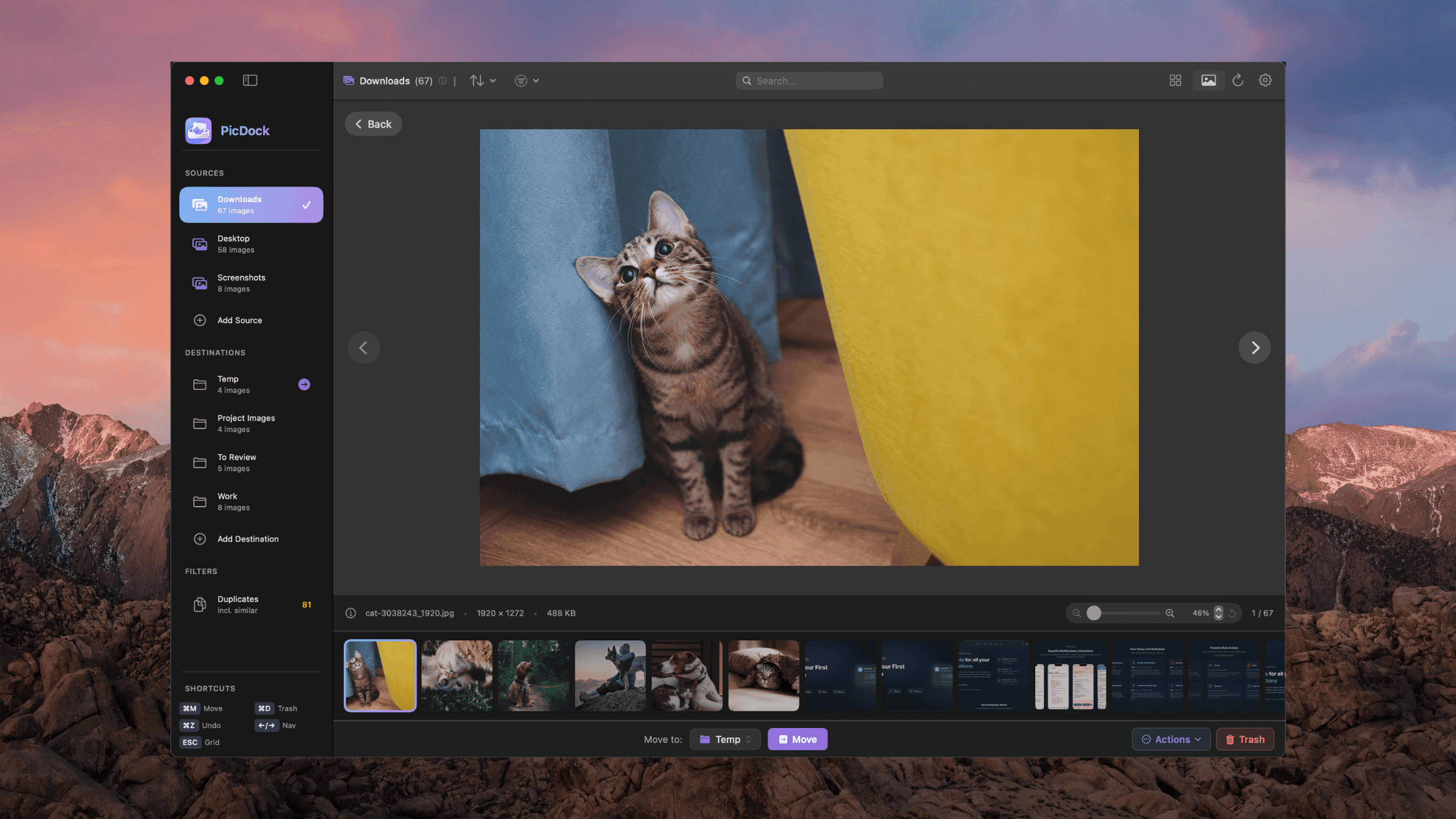
When people search for a "Windows-style photo viewer for Mac," they're not looking for exact UI replication. They're remembering something specific: open an image, hit arrow keys, boom—next image. No lag. No import. No fighting with apps that feel too simple (Finder) or too complex (Photos).
The old Windows Photo Viewer—and its modern successor, the Photos app on Windows 11—gave users something macOS struggles with: instant, keyboard-driven image browsing through folders. You didn't manage libraries. You didn't import anything. You just... browsed.
This guide explains what people actually want when they say "Windows-style," why macOS feels different, and how to get that streamlined folder-browsing experience on your Mac.
The 5 Things People Mean by "Windows-Style"
When users ask for a Windows-style photo viewer on Mac, they're describing a specific workflow—not nostalgia for Windows itself. Here's what they actually want:
1. Instant Next/Previous with Arrow Keys
The defining feature: open an image, press Left or Right arrow, and the next image appears instantly. No clicking. No menu navigation. Just arrow keys and speed.
Why it matters: When triaging 200 screenshots or reviewing a photoshoot, keyboard navigation is 10× faster than clicking thumbnails. You stay in flow state instead of constantly reaching for the mouse.
2. Simple Full-Screen Browsing
The Windows Photo Viewer showed one image, full-screen, with minimal UI. You focused on the image, not the interface. Arrow keys for navigation, Escape to close. That's it.
Why it matters: When you're comparing images or reviewing work, you want to see the actual photos—not toolbars, sidebars, and option panels competing for attention.
3. No Forced Import / Folder-First Workflow
Windows Photo Viewer worked with your existing folder structure. No import step, no library database, no "add to collection" friction. Files stayed where you put them, and the viewer just... viewed them.
Why it matters: Professional workflows often rely on project-based folder organization. Designers have "Project-A/assets/" folders. Developers have "screenshots/bug-123/" directories. Forcing these into a photo library breaks existing organization.
4. Fast Thumbnails and Zoom
Quick thumbnail overview to see what's in the folder, then full-screen view with smooth zoom to check details. Simple grid, simple controls, no waiting for thumbnails to generate.
Why it matters: You need to quickly assess a folder's contents (thumbnail grid), then dive into specific images (full preview) without app lag slowing you down.
5. Easy Delete/Move/Keep Workflow
Windows Photo Viewer made file management simple: see an image you don't want? Press Delete. Want to move it? Right-click and send to a folder. The simplicity was the feature.
Why it matters: Image triaging is about quick decisions: keep, delete, or move. Any friction in this workflow (extra confirmation dialogs, slow operations, complicated UI) kills productivity.
Why macOS Feels Different
macOS has powerful image tools, but they're optimized for different use cases than the Windows Photo Viewer workflow.
Finder = File Manager
Finder is excellent at organizing files, but terrible at browsing images. You can see thumbnails in icon view, but:
- No smooth keyboard navigation between images
- Quick Look (spacebar) is slow for large folders
- No easy way to see all subfolder images at once
- File operations require menu navigation or dragging
Finder treats images as files, not photos to browse.
Preview = Document Viewer
Preview.app is designed for PDFs and documents that happen to support images. When you use it for photos:
- Opening folders with 100+ images is painfully slow
- Thumbnail sidebar loads sluggishly
- Arrow key navigation often lags or freezes
- Designed for single-document workflows, not folder browsing
Preview is fine for viewing one image. It's frustrating for browsing collections.
Photos = Library / Import Paradigm
Photos.app is a sophisticated library manager with AI organization, face detection, and iCloud sync. But it requires:
- Importing images into a library (deal-breaker for folder-based users)
- Learning a new organizational paradigm
- Duplicating your files (library storage + original folders)
- Managing a database instead of just browsing folders
Photos is powerful if you want a library. It's overkill if you just want to browse project folders quickly.
The mental model difference: Windows Photo Viewer was a passive viewer. macOS tools are active managers. Sometimes you just want the former.
Options on Mac
Let's compare different approaches to achieving that Windows-style experience.
Option 1: Finder + Quick Look
Workflow: Navigate in Finder, press Space to preview an image, use arrow keys to browse.
Pros:
- Built-in, no installation
- Works with any folder structure
- Respects your organization
Cons:
- Extremely slow for folders with 50+ images
- Quick Look often hangs on large files
- No thumbnail grid view for quick overview
- Must select files in Finder to preview them
- Can't easily see all subfolder contents
Best for: Viewing occasional single images. Not suitable for the "Windows-style" workflow.
Option 2: Preview.app
Workflow: Open images in Preview, use arrow keys or thumbnail sidebar.
Pros:
- Pre-installed
- Decent editing tools (crop, rotate, annotate)
- Supports most image formats
Cons:
- Painfully slow when opening large folders
- Often freezes or becomes unresponsive
- No recursive subfolder browsing
- UI feels dated and unresponsive
- Thumbnail sidebar loads gradually (not instant)
Best for: Editing a few images. Not designed for fast folder browsing.
Option 3: Photos.app
Workflow: Import images into Photos library, browse with arrow keys in the app.
Pros:
- Fast browsing once imported
- Excellent organization features
- Good keyboard navigation
Cons:
- Requires importing (breaks folder-based workflows)
- Duplicates your files
- Adds library management overhead
- Not what people want when searching for "Windows-style"
Best for: Personal photo collections. Not for project-based folder workflows.
Option 4: Lightweight Third-Party Viewers
Workflow: Varies by app—generally point at a folder and browse.
Pros:
- Designed specifically for folder browsing
- Often faster than macOS built-in tools
- Better keyboard shortcuts
Cons:
- Quality varies widely
- Some still struggle with large collections
- Finding the right one requires trial and error
Best for: Users willing to test multiple apps to find their preference.
Option 5: PicDock Workflow
Workflow: Point PicDock at any folder, see all images (including subfolders) in a grid, use keyboard shortcuts to browse and organize.
Pros:
- Zero import—just select a folder and browse
- Recursive scanning shows all subfolder images in one grid
- Fast arrow key navigation in detail view
- Keyboard shortcuts for quick triaging (K=move, D=trash, U=undo)
- Optimized for thousands of images without lag
- Works offline, 100% local processing
Cons:
- Not a pixel-perfect Windows UI clone (but captures the workflow)
- macOS only
- Focused on organization, not advanced editing
Best for: Anyone wanting that Windows-style "open folder → browse → act" simplicity on Mac. Read more: Best Preview Alternative on Mac.
A Simple Folder-Based Workflow That Feels "Windows-Like"
Here's how to achieve that fast, keyboard-driven experience on macOS using PicDock:
Step 1: Open Your Folder
Instead of importing into a library, just point PicDock at the folder you want to browse:
- Drag a folder into PicDock, or
- Click "Add Source" and select any folder
- PicDock scans recursively, showing all images from all subfolders
Tip: You can add multiple source folders (e.g., "Downloads," "Screenshots," "Project Assets") and switch between them instantly.
Step 2: Browse the Grid
See all your images in a thumbnail grid:
- Scroll through thumbnails to get an overview
- Adjust thumbnail size with the slider
- Sort by date, size, or name
- Filter by file type if needed
This is like the folder view in Windows Explorer, but optimized for images.
Step 3: Enter Detail View
Click an image or press Space to see it full-screen:
- Arrow keys (Left/Right) navigate between images instantly
- Space toggles between grid and detail view
- Escape returns to grid
- Zoom with trackpad or mouse wheel
This is the Windows Photo Viewer experience: one image, minimal UI, keyboard navigation.
Step 4: Shortlist What You Need
As you browse, use keyboard shortcuts to organize:
- K: Move image to a destination folder (e.g., "Keep" or "Client Review")
- D: Move to trash (with undo support)
- U: Undo last action
- Cmd+Click: Select multiple images in grid view
Tip: Set up destination folders before you start. Create folders like "Keep," "Review," "Archive," and assign them as destinations. Then K becomes your "keep this" shortcut.
Step 5: Review Before Permanent Delete
Instead of deleting immediately, move suspect images to a quarantine folder:
- Create a "Review-Deletes" folder as a destination
- Send images there with K instead of using D
- Review the folder after a day or two
- Only then move to trash permanently
Warning: Never delete large batches of images without a review step. Mistakes are expensive. The quarantine workflow gives you a safety net.
This mirrors the Windows workflow while adding safety: quick decisions during triage, careful confirmation before permanent deletion.
Keyboard Shortcuts & Speed Tips
The Windows Photo Viewer experience was all about keyboard speed. Here's how to achieve that on Mac with PicDock:
Essential Shortcuts
- Arrow keys: Navigate between images in detail view
- Space: Toggle between grid and detail view
- Escape: Return to grid from detail view
- K: Move selected image(s) to destination folder
- D: Move to trash
- U: Undo last action
- Cmd+A: Select all images
- Cmd+Click: Add to selection
Speed Tips
Keep your hands on the keyboard: Assign destination folders once, then use K to move files instantly without touching the mouse.
Use grid → detail → grid flow: Scan thumbnails in grid view, Space into an image for closer look, arrow through related images, Escape back to grid.
Sort strategically: Sort by size to find duplicates, sort by date to see chronological order, sort by name to group related files.
Combine with macOS shortcuts: Cmd+Tab switches apps, Cmd+Space opens Spotlight—you can jump to PicDock, triage images, and jump back to your work without breaking flow.
Set up smart destinations: Create folders like "Keep," "Maybe," "Archive" and hot-key between them with K.
Frequently Asked Questions
Can I browse images across subfolders without drilling into each one?
Yes. PicDock's recursive scanning shows all images from all subfolders in a single unified grid. This is actually better than Windows Photo Viewer, which required manually navigating into each subfolder.
How do I quickly delete or move files with keyboard shortcuts?
Press D to move to trash, or press K to move to a preset destination folder. Both are single-keystroke operations—faster than Windows Photo Viewer's right-click menus.
Does it support modern formats like HEIC and WebP?
Yes. PicDock supports JPEG, PNG, HEIC, HEIF, WebP, TIFF, GIF, and BMP. This covers iPhone photos (HEIC), web images (WebP), screenshots (PNG), and everything else.
Does it work offline? Is there a privacy concern?
PicDock processes everything locally on your Mac. No internet connection required, no cloud uploads, no external servers. Your images stay on your disk. It's the same local-only approach Windows Photo Viewer used.
Is there a free option, or do I need to pay?
PicDock offers a free tier that lets you browse folders with some limitations. Full features (unlimited sources, batch operations, duplicates) require upgrading. Think of it like the Windows Photo Viewer experience with optional power-user features added.
How do I avoid accidentally deleting the wrong file?
Use the undo button (U) immediately if you make a mistake. Better yet, use the quarantine workflow: move files to a "Review" folder with K instead of deleting with D. Only empty the quarantine folder after confirming everything inside is actually disposable.
What about RAW files from cameras?
PicDock focuses on common formats (JPEG, PNG, HEIC, etc.) rather than RAW development. If you shoot RAW, use a dedicated tool like Lightroom for processing, then browse the exported JPEGs in PicDock. This matches how most users treat Windows Photo Viewer—it's for browsing processed images, not RAW development.
Can I browse network drives or external hard drives?
Yes. Point PicDock at any mounted volume (external drives, network shares, USB sticks) and it will browse them like local folders. Performance depends on drive speed, but the workflow is identical.
What "Windows-Style" Really Means
When people say they want a "Windows-style photo viewer for Mac," they're describing a philosophy:
Simple: Open a folder and browse. No import, no library, no setup.
Fast: Arrow keys navigate instantly. No lag, no spinners, no frozen interfaces.
Keyboard-first: Common actions accessible via single keystrokes, not buried in menus.
Folder-based: Respects your existing organization instead of forcing a new paradigm.
Just works: Minimal learning curve, maximum productivity from day one.
macOS has powerful image tools, but they optimize for different goals (Finder = file management, Preview = documents, Photos = library management). What's missing is the middle ground: a lightweight, fast, keyboard-driven folder browser.
That's the gap PicDock fills. It's not trying to clone Windows Photo Viewer pixel-by-pixel. It's capturing the workflow that made Windows Photo Viewer beloved: point at a folder, browse fast, decide quickly, stay productive.
The Real Question
The search for a "Windows-style photo viewer" isn't about Windows. It's about wanting an image browser that:
- Opens instantly
- Navigates with arrow keys
- Works with folders, not libraries
- Doesn't get in your way
We built PicDock because we wanted exactly that. Read more about the design decisions: Why We Built PicDock.
If you're tired of fighting macOS tools that feel wrong for simple image browsing, PicDock offers that streamlined experience.
Key features:
- Browse folders directly—no import required
- Recursive subfolder scanning
- Fast arrow key navigation in detail view
- Keyboard shortcuts for move/delete/undo
- Optimized for thousands of images without lag
- Works offline, 100% local processing
- Supports all common formats (JPEG, PNG, HEIC, WebP, etc.)
Download PicDock on the App Store →
Search Intent: Why People Look for This
Understanding the search intent helps clarify what users actually need:
"Windows style photo viewer mac" = Users miss the simplicity and speed of Windows Photo Viewer's folder-based browsing. They want keyboard shortcuts (especially arrow keys), no import step, and fast performance.
"Photo viewer mac arrow keys" = Users want keyboard-driven navigation, especially Left/Right arrows to move between images instantly. They're frustrated with macOS tools that require clicking or are too slow.
"Fast image viewer mac" = Users experienced lag with Preview or Quick Look and need a viewer optimized for performance when browsing large folders or high-resolution images.
"Folder image viewer mac" = Users want to browse images organized in folders without importing into a library. They need recursive subfolder support and folder-first workflows.
All these queries point to the same gap: macOS lacks a lightweight, fast, keyboard-driven image browser that works with folders. That's exactly the problem PicDock solves.
Related reading:
- Best Preview Alternative on Mac — Why Preview fails at folder browsing and what to use instead
- How to Browse Thousands of Images Without Lag — The engineering behind fast image browsing
- How to Find Duplicate Photos in Folders on Mac — Clean up messy folders efficiently
- Why We Built PicDock — The Finder + Preview frustration that inspired PicDock