 PicDock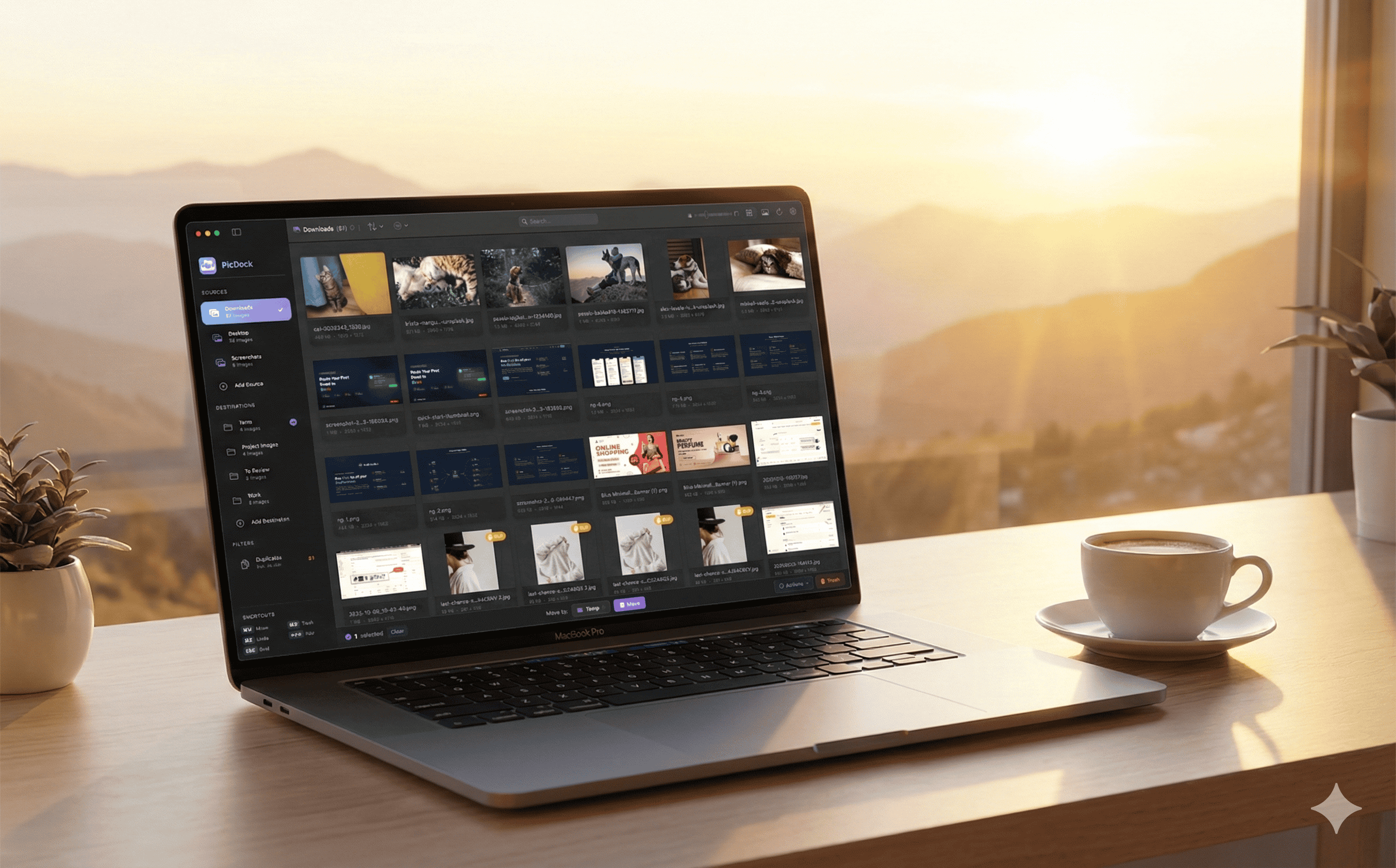
How to Browse Thousands of Images Without Lag: The #1 Challenge in Image Browser Apps
By PicDock Team
You've just returned from vacation with 3,000 photos. Or maybe you're a designer with folders full of assets. Or perhaps you're finally tackling that Downloads folder that's been accumulating images for years.
You open an image browser and start scrolling.
What happens next determines whether you'll love the app or delete it within five minutes.
The One Thing That Matters Most
Image browsers can have dozens of features: filters, tags, ratings, face detection, AI organization, cloud sync. But ask anyone who works with lots of images what they actually care about, and the answer is surprisingly simple:
Can I scroll through thousands of images without the app choking?
That's it. That's the whole game.
No amount of fancy features matters if your app freezes when you open a folder with 5,000 photos. No AI tagging helps if scrolling feels like wading through molasses. No beautiful design impresses if you see blank squares where thumbnails should be.
Smooth scrolling isn't a feature. It's the feature.
Why Most Image Browsers Fail This Test
Here's the dirty secret of image browsing: it's really, really hard to do well.
A single high-resolution photo can occupy 24 megabytes of memory when loaded. Open a folder with 1,000 images, and you're looking at 24 gigabytes of data—more than most computers have in total.
Many apps take shortcuts. They load images slowly. They show spinners and blank squares. They work fine for 50 images but grind to a halt at 500. Some even crash when faced with a large photo library.
Users notice. They might not know why the app feels sluggish, but they feel it. That moment of hesitation when you scroll. That slight stutter. That spinner that appears just long enough to break your flow.
The Craftsmanship Behind Smooth Scrolling
Making an image browser that handles thousands of images smoothly isn't about one clever trick. It's about sweating every detail.
Intelligent caching: Keep the right images in memory—not too many (which hogs resources), not too few (which causes loading delays). This balance requires constant fine-tuning.
Aggressive cleanup: Release memory the moment it's no longer needed. When you scroll past an image, the app should immediately free that memory for what's coming next.
System awareness: Listen when your Mac says it's running low on memory. A well-behaved app responds by clearing its caches, not by fighting for resources until the system force-quits it.
Pixel-perfect efficiency: Generate thumbnails using the fastest possible methods, without accumulating hidden memory that never gets freed.
True virtualization: Only render what's actually on screen. But do it in a way that feels instant when you scroll, not laggy.
Each of these sounds simple. Getting them all to work together—that's where the real engineering happens.
What It Feels Like When It's Done Right
When an image browser is properly optimized, you don't think about it at all. You just scroll.
Your 8,000-photo library opens instantly. You flick through images and they're there—no waiting, no spinners, no stuttering. You can have Photoshop, Figma, and a dozen Chrome tabs open, and the browser still responds instantly.
You don't appreciate the engineering. You just think, "This app is fast."
That's exactly how it should be.
The Hidden Investment
Behind that effortless experience are hundreds of hours of optimization. Testing with massive photo libraries. Profiling memory usage byte by byte. Rewriting components that looked fine but had hidden performance costs. Choosing the harder technical path because it's the one that actually scales.
It's the kind of work that users never see—but always feel.
When you're evaluating an image browser, don't just look at the feature list. Open your biggest folder. Scroll fast. Scroll slow. Switch between images rapidly.
Does it feel smooth? Does it stay smooth after browsing for ten minutes? Does it play nicely with your other apps?
That's the real test of quality.
The Takeaway
Features are easy to list. Performance is easy to promise. But making an image browser that genuinely handles thousands of images without breaking a sweat? That takes engineering discipline, relentless testing, and a refusal to ship "good enough."
The best image browsers are the ones where you never think about performance—because it just works, every time, no matter how many images you throw at it.
That's the standard we hold ourselves to. And that's exactly why we built PicDock.
Try PicDock: An Image Browser Built for Speed
PicDock is a macOS image browser designed from the ground up to handle large image collections smoothly. No lag. No blank thumbnails. No memory bloat.
Whether you're sorting through vacation photos, managing design assets, or finally cleaning out that Downloads folder, PicDock keeps up with you—no matter how fast you scroll.
Key features:
- Browse thousands of images without slowdown
- Keyboard-driven workflow (K to keep, D to delete, arrow keys to navigate)
- Find duplicate images automatically
- Move files to organized destinations with a single keystroke