 PicDock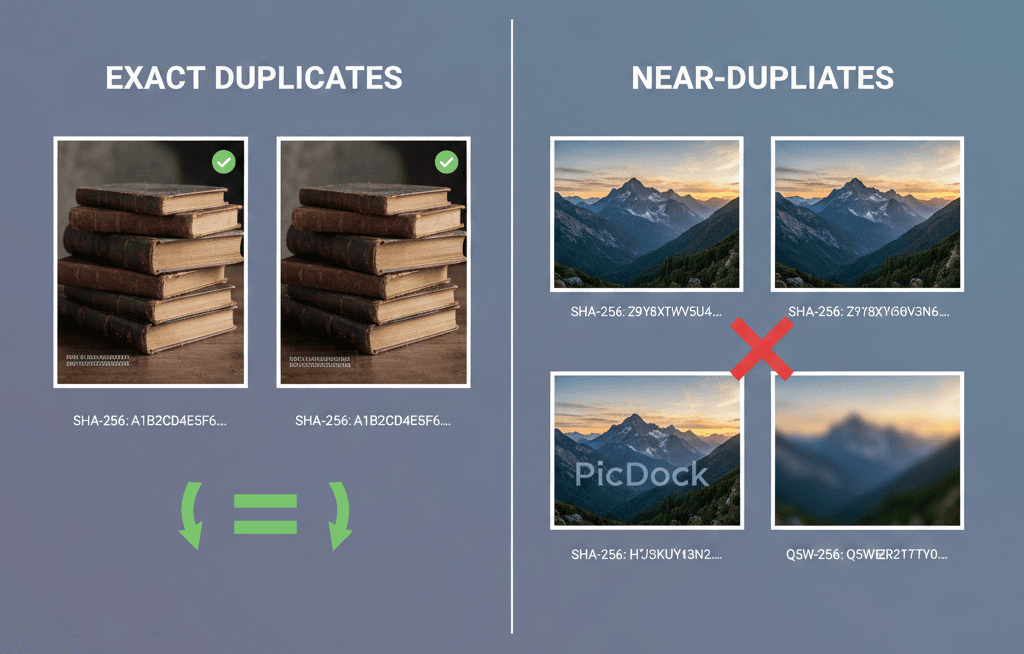
When cleaning up image folders, you'll encounter two types of duplicates: exact duplicates and near-duplicates. Understanding the difference isn't just technical trivia—it's the key to safely removing duplicates without losing important files.
The distinction is simple: exact duplicates are identical copies you can safely delete. Near-duplicates are similar images that require human judgment before removal.
Get this wrong, and you might delete the high-resolution version while keeping the low-quality thumbnail. Or trash the edited photo while keeping the unedited original. Or remove the properly cropped image while keeping the poorly framed one.
This guide explains what makes images "exact" versus "near" duplicates, shows real-world examples, and outlines a safe workflow for managing both types in your folder libraries.
What is an Exact Duplicate?
An exact duplicate is a byte-for-byte identical copy of a file. Every single pixel, every metadata field, every bit of data is identical.
These files have the same cryptographic hash—typically a SHA-256 hash that acts like a digital fingerprint. If two files have the same hash, they're mathematically guaranteed to be identical. Even changing a single pixel would produce a completely different hash.
Real-world examples of exact duplicates:
- You downloaded an image twice from the same source
- You copied a file to a new location and forgot you already had it
- A sync service created multiple copies of the same photo
- You exported the same design asset without modifying it
Why exact duplicates are safe to remove:
Because they're truly identical, deleting one while keeping the other loses zero information. You're simply removing redundant storage. The filename might differ (IMG_1234.jpg vs IMG_1234-copy.jpg), but the actual image data is identical.
What is a Near-Duplicate?
A near-duplicate is an image that looks similar but has different underlying data. The visual content is the same or very similar, but the files themselves aren't identical.
These images have different hashes because the actual bytes differ—but to the human eye, they appear the same or nearly the same.
Real-world examples of near-duplicates:
- Different sizes: The original 4000×3000 photo and a 1200×900 resized version for web
- Different compression: A PNG screenshot and the same screenshot saved as JPEG
- Different crops: The full photo and a cropped version focusing on the subject
- Different edits: The original and a version with brightness/contrast adjustments
- Different watermarks: The clean image and the same image with a logo overlay
- Burst photos: Multiple shots taken in rapid succession with tiny differences
- Screenshots with timestamps: Multiple captures of the same window at different times
Why near-duplicates require careful review:
These aren't truly identical. One version might be better than the other—higher resolution, better crop, preferred edit, or without a watermark. Auto-deleting near-duplicates risks removing the version you actually want to keep.
Common Real-World Scenarios
Understanding these patterns helps you recognize duplicates faster:
Screenshots from Messaging Apps
You take a screenshot of a conversation. Your friend sends you the same screenshot. Now you have two images that look identical but differ in metadata, resolution, or minor timestamp differences. These are near-duplicates, and you'll want to keep just one.
Design Asset Exports
You export a logo at different sizes for various use cases: logo-1024.png, logo-512.png, logo-256.png. These are near-duplicates—same visual content, different resolutions. You probably need all of them, so blindly deleting "duplicates" would break your asset pipeline.
Photo Edits in Progress
You're editing a photo and save multiple versions: original, cropped, color-corrected, final with filters. These are near-duplicates, but you might want to keep the original and the final version while removing intermediate drafts.
Downloaded vs Local Copies
You download an image from Dropbox, then download it again from email. The file content is identical, but metadata (download timestamp, file attributes) might differ. These could be exact duplicates or near-duplicates depending on how the download service handles metadata.
Batch Processing Mishaps
You resize a folder of images twice by mistake, creating image-resized.jpg and image-resized-resized.jpg. The second resize might not actually change anything (if already at target size), making them near-duplicates or even exact duplicates.
Why Near-Duplicates Are Risky to Auto-Delete
Some duplicate finders offer "auto-delete" features that remove duplicates without review. This is dangerous for near-duplicates because:
1. Quality matters
Deleting the 4K version while keeping the thumbnail is a disaster. Near-duplicate detection doesn't know which version is "better"—it just knows they're similar.
2. Context matters
A screenshot taken on January 1st might be legally important. The same screenshot taken on January 15th might not be. They're near-duplicates, but one might matter more.
3. Intention matters
You might have deliberately kept both the cropped and uncropped versions. Auto-deletion doesn't understand your intent—it just sees "similar images."
4. False positives
Perceptual hash algorithms can flag images as near-duplicates when they're not. Two different photos with similar composition (same location, different day) might be flagged as duplicates but are actually distinct memories.
A Safe Workflow for Managing Duplicates in Folder Libraries
Here's a systematic approach that protects against accidental deletion:
Step 1: Scan with Caution
When scanning for duplicates, separate exact duplicates from near-duplicates. Exact duplicates are safe to batch-delete. Near-duplicates require individual review.
Step 2: Group by Similarity
If your tool supports it, group similar images together so you can compare them side-by-side. This makes it obvious which version to keep.
Step 3: Review with Large Previews
Don't rely on thumbnails. View full-size images to spot differences in resolution, quality, or crop. What looks identical at 200×200 pixels might differ significantly at full resolution.
Step 4: Use a Quarantine Folder
Instead of deleting immediately, move suspected duplicates to a review folder. Keep this folder for a few days to ensure you haven't accidentally removed something important. (See our guide to finding duplicates in folders for the detailed quarantine workflow.)
Step 5: Check File Sizes and Dates
When comparing near-duplicates, look at file size (larger usually means higher quality) and modification date (newer might be the edited version you want to keep).
Step 6: Keep Masters, Delete Derivatives
If you're unsure, keep the highest-quality version and delete lower-quality copies. For example:
- Keep PNG, delete JPEG (PNG is lossless)
- Keep the larger file, delete smaller ones
- Keep the edited version, delete intermediate saves
How PicDock Helps with Duplicate Management
PicDock is designed to make this workflow practical for large folder collections:
Fast browsing: Scroll through thousands of images without lag to quickly assess duplicates. Performance matters when you're reviewing hundreds of potential matches. (Read more about how we optimize for speed.)
Large preview: View full-resolution images with zoom to spot subtle differences between near-duplicates. Thumbnails aren't enough—you need to see the actual quality difference.
SHA-256 hash detection: Automatically identifies exact duplicates with cryptographic accuracy. No false positives—if the hash matches, the files are truly identical.
Perceptual hash detection: Flags near-duplicates using visual similarity algorithms. This helps you find images that look the same but have different file sizes, formats, or minor edits.
Recursive folder scanning: See all images from nested subfolders in one unified grid. No more manually drilling into dozens of folders to find scattered duplicates.
Destination folders: Move duplicates to a quarantine folder with a keyboard shortcut (K). This creates a safe buffer before permanent deletion—you can review the quarantine folder and recover any mistakes.
Batch operations: Select multiple duplicates and move them all at once. Efficient for cleaning large collections without clicking each file individually.
Local processing: All duplicate detection happens on your Mac. No cloud uploads, no privacy concerns, no internet connection required. Your images stay on your disk.
Sorting and filtering: Sort by file size, date, or type to group similar images together. Filter to show only flagged duplicates, making review faster.
Frequently Asked Questions
Is matching file size enough to identify duplicates?
No. Different images can have the same file size by coincidence, especially with compressed formats like JPEG. You need either hash-based matching (for exact duplicates) or visual comparison (for near-duplicates).
Can I rely on file names to avoid duplicates?
Absolutely not. Files can be renamed while staying identical. vacation-photo.jpg and IMG_1234.jpg might be exact duplicates. Conversely, logo-v1.png and logo-v2.png might be completely different images. Always use hash-based detection or visual comparison.
What about resized versions for web? Are those duplicates?
Technically yes—they're near-duplicates. But you probably need both versions. The full-resolution original is for printing or high-quality use, while the web-optimized version is for your website. Don't delete them just because they look similar.
How do I decide which version to keep as the "master"?
Prioritize:
- Resolution: Keep the highest resolution
- Format: Keep lossless formats (PNG, TIFF) over lossy (JPEG, WebP)
- Edit state: Keep the final edited version, not intermediate saves
- Metadata: Keep the version with correct EXIF data or timestamps
Do I need AI to detect near-duplicates?
Modern perceptual hash algorithms (like dHash or pHash) work well without AI. They compare visual features mathematically—fast, reliable, and no training data required. AI-based approaches can be more sophisticated but aren't necessary for typical duplicate cleanup tasks.
Should I delete near-duplicates automatically?
No. Always review near-duplicates before deletion. The visual similarity doesn't tell you which version is more important, higher quality, or correctly edited. A few minutes of manual review prevents hours of recovery work later.
What happens if I accidentally delete the wrong version?
This is why the quarantine workflow matters. Move suspected duplicates to a review folder first, verify for a day or two, then permanently delete. Most duplicate-cleanup regrets come from skipping this step.
Making Duplicate Cleanup a Regular Habit
Once you understand the difference between exact and near-duplicates, incorporate cleanup into your regular workflow:
- After downloads: Review your Downloads folder weekly for obvious duplicates
- After projects: Clean up design asset exports when a project wraps
- After photo imports: Check for duplicates after importing images from devices
- Monthly maintenance: Do a deeper scan of your Documents and Desktop folders
The key is catching duplicates early. A folder with 20 duplicates is manageable. A folder with 2,000 duplicates is overwhelming.
Get Started with Smarter Duplicate Management
Understanding exact vs near-duplicates is the first step. The second step is having tools that respect this distinction—flagging exact duplicates for safe removal while surfacing near-duplicates for careful review.
PicDock is built for exactly this workflow. It scans folders recursively, detects both exact and near-duplicates, and gives you the visual tools to make informed decisions about what to keep.
Key features:
- SHA-256 hash detection for exact duplicates
- Perceptual hash detection for near-duplicates
- Large preview with zoom for quality comparison
- Quarantine folders for safe review workflow
- Keyboard-driven for fast processing
- 100% local—your images never leave your Mac
Download PicDock on the App Store →
Related reading:
- How to Find Duplicate Photos in Folders on Mac — Complete guide to folder-based duplicate cleanup
- How to Browse Thousands of Images Without Lag — Why performance matters when reviewing duplicates
- Why We Built PicDock — The folder management problem we set out to solve